Desktop as a Service: when a virtual desktop makes sense, and when a well-managed laptop is better
Desktop as a Service moves the Windows desktop into a data centre and streams it to whatever device the user has in front of them. It solves a handful of problems very well and creates a few new ones. So the question is not whether it is modern, but which people in your organisation it actually helps.
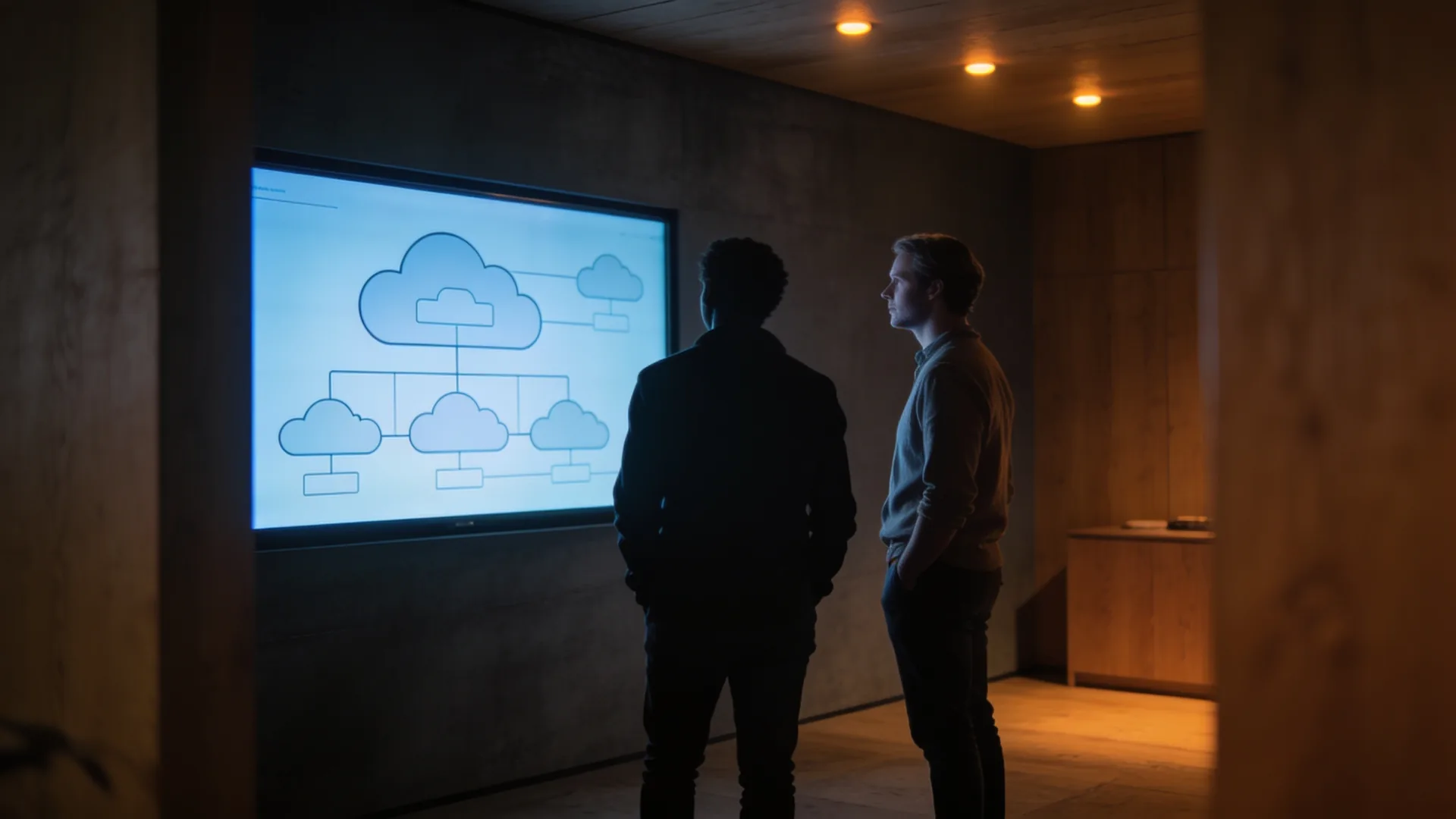
Desktop as a Service is a Windows desktop that runs in a data centre and is bought as a subscription. The device on the desk only displays it.
It suits temporary staff, contractors, personal devices and applications that need to sit close to their data. For people who only use Microsoft 365 and a browser, a well-managed laptop is usually simpler.
Pilot it with a small group from different roles, using their real printers, headsets and applications, before you decide for the whole organisation.
What Desktop as a Service is, and what it is not
With Desktop as a Service, or DaaS, a user’s Windows desktop runs on a server in a cloud provider’s data centre. The user signs in from a laptop, a thin client, a Mac or a tablet and sees their desktop, their programs and their files. Processing, storage and updates happen in the data centre; the device sends keystrokes and mouse movements and receives a picture back.
The difference from virtual desktops on your own servers (VDI) is who looks after the layer underneath. With VDI, the servers, storage and virtualisation software sit with you or in a rented rack, and you manage them or have them managed. With DaaS, the provider takes that part on and you pay per user or for the capacity you use.
Two common confusions. DaaS sometimes also means Device as a Service: a laptop on subscription, replacement included. That is a different subject; it is about the hardware, not about where the desktop runs. And DaaS is not SaaS: SaaS gives you one application in the browser, DaaS gives you a full Windows environment in which your older Windows software runs too.
When a virtual desktop makes sense
Desktop as a Service is at its best where the user’s device or location is the problem, not the desktop itself.
- Temporary and seasonal staff. A desktop is ready in minutes and gone in minutes, with no laptop to collect and wipe afterwards.
- Contractors and personal devices. A contractor or supplier works on their own laptop, but company data stays in the data centre and never lands on that device.
- Applications that need to sit close to their data. A package that talks to a database across the network slows to a crawl over a home connection. Run the desktop next to that database in the same data centre and only the picture travels.
- One Windows program on a Mac. An accounts or line-of-business package that only runs on Windows becomes reachable through a virtual desktop without anyone changing device.
- Acquisitions and short-term partnerships. New colleagues work in your environment from day one while their own devices are still being replaced.
What these cases share is a clearly defined group rather than everyone. That is also where nearly every successful DaaS rollout starts.
When a well-managed laptop is better
If someone works mainly in Microsoft 365, Teams and a few web applications, a virtual desktop adds a layer they do not need. Those applications already run in the cloud; a properly managed and secured laptop achieves the same with fewer moving parts. How that trade-off between your own servers and the cloud works more generally is covered in own servers or the cloud.
- Heavy calling and video meetings. Audio and video through a virtual desktop need optimisation on the device side, or the picture stutters. It can be done, but it is work and it has to be right on every device.
- Graphics and heavy computation. CAD, video and large models need a virtual machine with a graphics card, which is a different category altogether from an office desktop.
- Poor or patchy connections. No connection means no desktop. People who work on trains, on site or at customers without decent networking are better served by a laptop that keeps working offline.
- Servers that stay in the office. If the application server lives in your own server room and the virtual desktop in a cloud region, the link between the two becomes the new bottleneck.
Personal or pooled, and which platform
The first decision is the model, not the brand. A personal desktop belongs to one user and persists between sessions: their settings and installed programs stay put. A pooled desktop serves several users at once on the same virtual machine, and each user’s profile is loaded at sign-in. Pooled uses capacity more efficiently; personal is simpler for people who install a lot themselves.
Then the platform. Windows 365 from Microsoft provides a personal Cloud PC per user on a fixed monthly licence. Azure Virtual Desktop runs in your own Azure subscription, supports pooled desktops and charges for the capacity you use. Citrix DaaS and Amazon WorkSpaces are among the other options. The differences lie in who manages the virtual machines, how flexible the capacity is and which licences you already hold.
Ask every provider which region the desktops and profiles live in. For personal data under UK GDPR you want to be able to point to it, and in some sectors it is a requirement in a tender or a contract.
What drives the cost of a virtual desktop
Comparing a monthly per-user figure with the price of a laptop tells you little, because the two do not replace the same thing. What actually shapes the sum:
- Personal or pooled. Pooled desktops spread capacity across more people; personal ones sit ready for one user.
- How long the desktops are running. On a consumption model it matters whether machines are switched off outside working hours. On a fixed per-user licence it does not.
- The licences you already have. For Azure Virtual Desktop, the right to use Windows is included in a number of Microsoft 365 plans. If you already have one, the maths differs from having to buy it.
- Storage and profiles. Profiles, shared drives and backups live in the data centre too and count towards the total.
- The device does not disappear. You still need something to sign in from, even if it can be simpler and last longer. That device still has to be supplied, secured and managed.
- Image management. Someone keeps the desktop itself current: updates, applications, profiles. That work moves; it does not go away.
How to pilot it before you choose
A pilot of a few weeks with a small group tells you more than any comparison table. Pick that group from different roles, not just IT, because IT works differently from everyone else.
- List the applications first. Which programs, which versions, and are they supported in a virtual or pooled environment? If in doubt, ask the software vendor.
- Include the peripherals. Label printers, scanners, card readers, headsets and USB keys are where a virtual desktop trips up most often.
- Test from the real locations. Office, home, a branch, a hotel. Judge it on the worst connection people genuinely have.
- Ask users what lags, every week, and write it down. A desktop that is half a second behind is something you only hear about if you ask.
- Agree the way out in advance. Where profiles and files are stored, and how you get them back if you change platform.
Where our work stops
What we do. We help decide which group needs a virtual desktop, set up the environment and manage it: the desktops, the image, the profiles, the security and the devices people sign in from. We run the pilot alongside you and get the peripherals working.
What we do not do. The platform itself belongs to the provider: the data centres, the virtualisation layer and their availability fall under the provider’s terms, not ours. We do not rewrite third-party applications, and whether a package is supported in a virtual environment is for its vendor to say. Nor do we give legal advice on where personal data may be held; we show you where it is, and the judgement belongs to your own data protection adviser.
Questions we get about this
The five that come up most often.
What is Desktop as a Service?
Desktop as a Service, or DaaS, is a Windows desktop that runs in a cloud provider’s data centre and is paid for per user or for the capacity used. The user signs in from a laptop, thin client or tablet and sees their desktop there. The provider manages the servers and virtualisation underneath.
What is the difference between DaaS and VDI?
With VDI, the virtual desktops run on servers you manage yourself or have managed, in the office or in a rack. With DaaS, a cloud provider takes care of the servers, storage and virtualisation. The desktop can look identical to the user; the difference is who maintains the layer underneath.
Is Windows 365 the same as Azure Virtual Desktop?
No. Windows 365 gives each user their own Cloud PC on a fixed monthly licence. Azure Virtual Desktop runs in your own Azure subscription, also supports pooled desktops for several users and charges for capacity used. Which one fits depends on the number of users, their working hours and the licences you already have.
Do I still need a laptop with Desktop as a Service?
Yes, you always need a device to sign in from. It can be simpler, such as a thin client or an older laptop, and it does not need to hold company data. It still has to be supplied, updated and secured, though.
Are you the platform provider?
No. The platform and data centres belong to the provider, such as Microsoft, and fall under its terms. We set up and manage the virtual desktop, including the devices people sign in from. Whether a third-party application is supported in a virtual environment is up to its vendor.
Further reading
Where a virtual desktop connects.
Which colleagues really need a virtual desktop?
Tell us which applications and which groups you have in mind. We will tell you where Desktop as a Service solves something, where a managed laptop is enough, and how to pilot it with a small group.
Practical IT knowledge in your inbox
New guides on management, security and the workplace, written by the people doing the work. No sales talk, and you can unsubscribe in one click.